How To Use PayLinks
Finding The PayLink Feature
Once you have had the PayLinks feature enabled on your AGG SMART, you will be able to hover over the icon shown in the screenshot below:
If the icon appears to be grey-ed out then this either because the feature hasn't been enabled yet, in which case you will see the following message when you hover over the icon:
If this the case, get in touch with support@aggsmart.co.uk to get the PayLinks feature enabled. PayLinks is only available with our NMI Payment Gateway, so if you are currently using the Opayo/SagePay Payment Gateway then you will need to have our support team put you in touch with our Payment Partner to assist you with this.
Adding Contact Details
By default the system will allow you to send the PayLink to the email address and phone number which you have on file for the customer, as highlighted in the screenshot below:
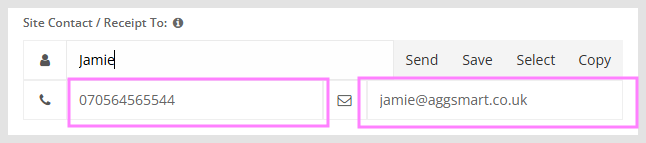
If you would like to send the PayLink to the Site Contact on a job, you will need to make sure their information has been added to the Quote Form. To do this click the "Edit" button to open the Quote Form. Scroll down to the "Site Contact / Receipt To:" part of the form, as shown in the screenshot below, and enter either an email address and/or a mobile number and click Update Quote Button.
Sending A PayLink
You are now ready to send a PayLink. To do this click the PayLink icon and it will popup with the Send PayLink To dropdown options, as shown in the screenshot below:
As you can see in the above screenshot we have the option of either sending to our Site Contact or to our Customer contact details. Select your preferred option from the dropdown and press the green Send PayLink button, highlighted in the screenshot below:
The system will now send the the PayLink to the contact details of the option you selected. If the link is sent successfully you will see a similar to notification to the one in the screenshot below:
The link the customer is sent is shown in the notification itself - it's the last line which begins with https://agg.sm and which goes slightly outside of the notification box. If you were to copy and paste that URL into a new tab on your browser you will be able to see exactly what the customer will see when they click on the PayLink in their inbox.
What The Customer Sees
When you elect to send the PayLink the customer will receive either an email or a text with the URL for them to visit and make the payment. When they click the link they will be taken a page similar to the one below which will be branded to your company:
They would now need to click the "Pay Now" button which will then display the card payment details form, as per the screenshot below:
If the job has yet to be carried out then the Payment Form will show a "Pre Auth My Card for £xxxx" label on the Payment Button. With the example above, once the card details have been submitted and if all the card checks are successful, then the payment will be Pre-Authorised against their card. This can then be captured after the job has been completed.
If the job has already taken place you will see the label on the button say "Charge My Card for £xxxx", as per the screenshot below:
Once the card details have been accepted this will charge the customer for the job.
Payment Status
There isn't a specific status to say the order has been paid via the PayLink. However, you can see the status of the payment by the colour of the card symbol on the order's Shipping Screen Job Box. The colours are outline below:
 | Red = Not pre-authorised. |
 | Orange = PayLink has been sent but not yet pre-authorised. |
 | Yellow = Pre authorisation taken. |
 | Green = Payment has been captured. |
Charging Extra Above The Quoted Price
One of the features of AGG SMART card pre-authorisation system is that it allows you to set a percent over and above the quote amount to pre-authorise against the customer's card, in case of any overages which occur on the job. This extra amount is by default the same as it would be if you were taking the card details over the phone. If you would like these to be different for PayLinks then email support@aggsmart.co.uk and let us know how you would like the amounts to be setup.
SMS Messages Aren't Sending
If you find SMS PayLink messages aren't sending then this is usually because either the phone number isn't a valid mobile number, or your AGG SMART system hasn't be setup to send SMS messages. If you currently don't have the SMS feature setup on your AGG SMART system and would like this, then let us know at support@aggsmart.co.uk. You can read about the other SMS messages the system will send on our Customer Text (SMS) Messages knowledgebase article.